Sky Context & Plate Solving
PSF Guard identifies the objects expected around a frame, solves its pixels on demand with the Seiza engine, and displays catalog labels, object outlines, an RA/Dec grid, the solved scale, and the pointing offset directly in the grader.
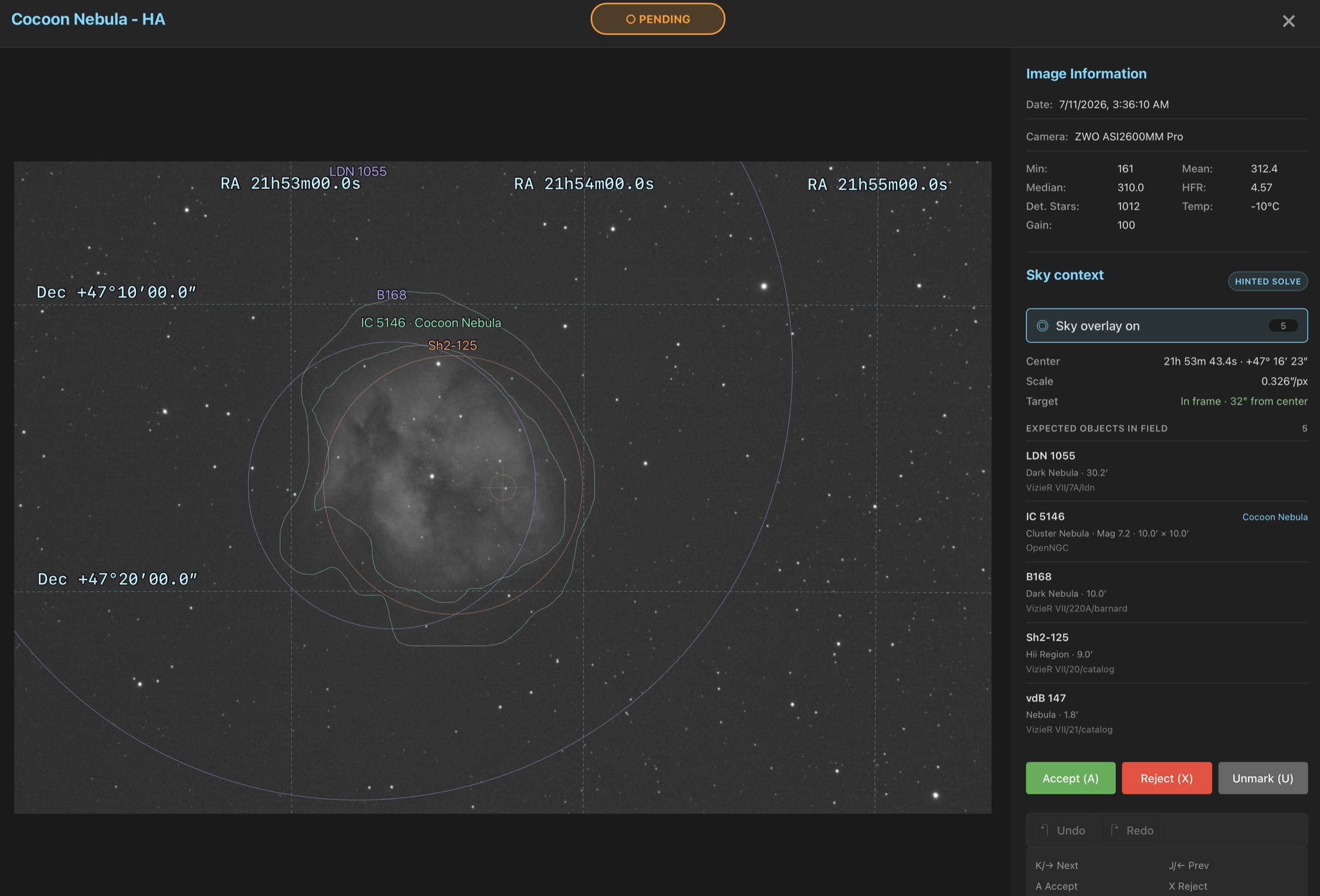
Context, solution, and overlay are different layers
| Layer | What it tells you | What it needs |
|---|---|---|
| Catalog context | This layer displays objects expected near the FITS or catalog target coordinates. This provides pointing context rather than proof that an object is visible in the pixels. | This requires objects.bin and approximate target coordinates. |
| WCS solution | This reports the image's measured center, scale, rotation, parity, and target offset. A supported embedded TAN WCS is accepted immediately; otherwise PSF Guard solves the pixels. | This requires a star catalog or a supported embedded WCS. |
| Sky overlay | This projects an RA/Dec grid, target marker, labels, extents, and source-qualified catalog outlines into the image. | This requires a WCS solution and objects.bin for object annotations. |
1. You must install the Seiza catalogs
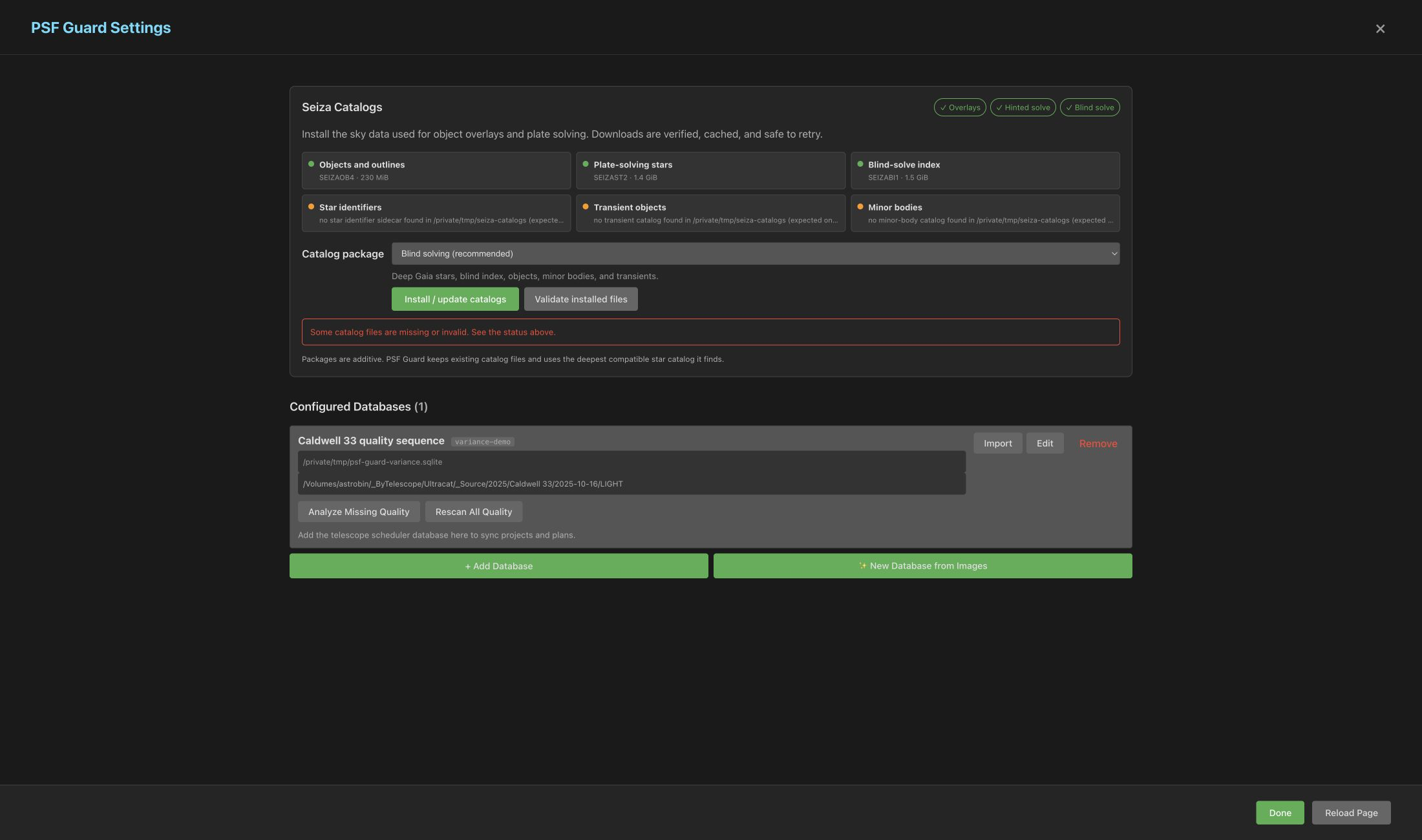
PSF Guard embeds Seiza version 0.12.0's solver, but does not bundle the multi-gigabyte catalogs. You can install or update them by opening Settings → Seiza Catalogs in the desktop app. The web interface provides the same controls if the server starts with the --allow-database-management option.
The Settings view displays which features are active, offers additional catalog packages, preserves download progress across page reloads, and validates installed files. Blind solving is the recommended default.
For manual or headless installations, you can download the seiza CLI from the Seiza releases page, or install the matching CLI version using Cargo:
cargo install seiza-cli --version 0.12.0After installing the CLI, use the guided setup or the non-interactive prebuilt download command:
# Recommended: choose a bundle for your available storage and use case.
seiza setup

# Or download the complete, SHA-256-verified prebuilt bundle.
seiza download-data prebuilt --output /path/to/seiza-data
The complete bundle contains all required files. If you install individual files, PSF Guard relies on the following three resources:
| File | Feature |
|---|---|
objects.bin | This file provides coordinate-only object context, solved labels, and catalog outlines. |
stars-lite-tycho2.bin, stars-gaia.bin, or stars-deep-gaia17.bin | These files enable hinted solving. Seiza automatically selects the deepest installed catalog. |
blind-gaia16.idx | This file provides a blind solver fallback when the pointing hint is missing or outdated. |
2. PSF Guard must locate the catalog bundle
The seiza setup command writes to the platform-standard catalog directory, which PSF Guard searches automatically. You must restart PSF Guard after installing or modifying catalogs.
If you use a custom location, set the SEIZA_CATALOG_DIR environment variable before starting PSF Guard, or merge the following top-level fragment into your existing PSF Guard configuration file:
"astrometry": {
  "data_dir": "/path/to/seiza-data"
}
You must preserve any existing databases entries in the configuration. The configuration file is located at the following paths depending on your platform:
| Platform | Registry path |
|---|---|
| Windows | %APPDATA%\psf-guard\config.json |
| macOS | ~/Library/Application Support/psf-guard/config.json |
| Linux | ~/.config/psf-guard/config.json |
You can run PSF Guard with Docker
To deploy PSF Guard using Docker, mount the catalog directory as read-only and expose its location to the embedded Seiza library:
docker run -d -p 3000:3000 \
  -e SEIZA_CATALOG_DIR=/catalogs \
  -v /path/to/seiza-data:/catalogs:ro \
  -v /path/to/catalog.sqlite:/data/database.sqlite \
  -v /path/to/images:/images:ro \
  ghcr.io/theatrus/psf-guard:latest
3. You can verify the running configuration
The capability endpoint reports the resolved paths and identifies which features are available. The validation endpoint fully reads each configured catalog, which can take several minutes when using the deep Gaia catalog:
curl http://localhost:3000/api/astrometry/capabilities
curl -X POST http://localhost:3000/api/astrometry/catalogs/validateobjects.bin, but no usable star catalog is installed. The solver requires at least one of the stars-*.bin files to function. The blind index is optional and is only used as a fallback when the hinted solver cannot process the field.
4. You can solve and inspect a frame
- Open an image in the detail grader. The Sky context panel loads the header and catalog context without running a plate solve.
- If the image has a supported embedded WCS, you can enable the Sky overlay immediately. If not, click Solve field or press the
Okey to solve the image. - PSF Guard attempts a hinted solve first using the FITS header mount coordinates and scale. It falls back to the blind index if the hint is missing or outdated.
- A successful plate solve automatically enables the sky overlay. You can press the
Okey to toggle the overlay while zooming, panning, or grading. - If you have cached orbital elements, you can press the
Tkey to display predicted satellite crossings and align nearby trails in the pixels.
The details panel identifies the solution source as an Embedded WCS, a Hinted solve, or a Blind solve. It displays the solved center coordinates, the pixel scale, and whether the scheduled target is within the field of view. The Rotation field shows the angle from the top of the image to celestial north, where positive values indicate rotation toward the right. The Mirrored label indicates that the image orientation is reversed left-to-right compared to the sky.
The satellite projection overlays use the exposure time and observing site coordinates alongside the WCS. Predicted orbital paths (dashed) and detected pixel-aligned trails (solid) remain distinct. See Satellite Tracks for details regarding timing headers, offline elements, the evidence boundaries, and grading behavior.
PSF Guard caches solutions and manages solver concurrency
Pixel-derived plate solutions are stored on disk under <cache>/<db-slug>/astrometry/<image-id>.json. These solutions are reused on subsequent visits and are invalidated if the source FITS file, the catalog files, or the Seiza version changes. PSF Guard runs only one memory-intensive plate solve at a time per database, and concurrent requests for the same frame reuse the cached solution once completed.
The image astrometry API exposes these features programmatically
# This endpoint returns the header and catalog context or a valid cached solution, but does not launch a solve.
curl http://localhost:3000/api/db/my-db/images/123/astrometry

# This endpoint decodes the image pixels and solves the field on demand.
curl -X POST http://localhost:3000/api/db/my-db/images/123/astrometry