You can add image folders and plan your project.
You can build a Target Scheduler-compatible catalog from FITS or XISF folders, review the projects and plans that PSF Guard derives from the image headers, and run background quality analysis to measure your stars and solve pointing coordinates.
The importer reads file headers first and leaves quality work for later.
You can create a catalog from images.
The desktop application allows database modifications. If you run the web server, you must bind it to a trusted network interface and enable database management with the following command:
psf-guard server --host 127.0.0.1 --allow-database-managementIn the application, go to Settings → New Database from Images, enter one or more absolute paths to your image directories, and click Create & Import. If any path is invalid, the form retains your input and displays an error naming the missing directory.
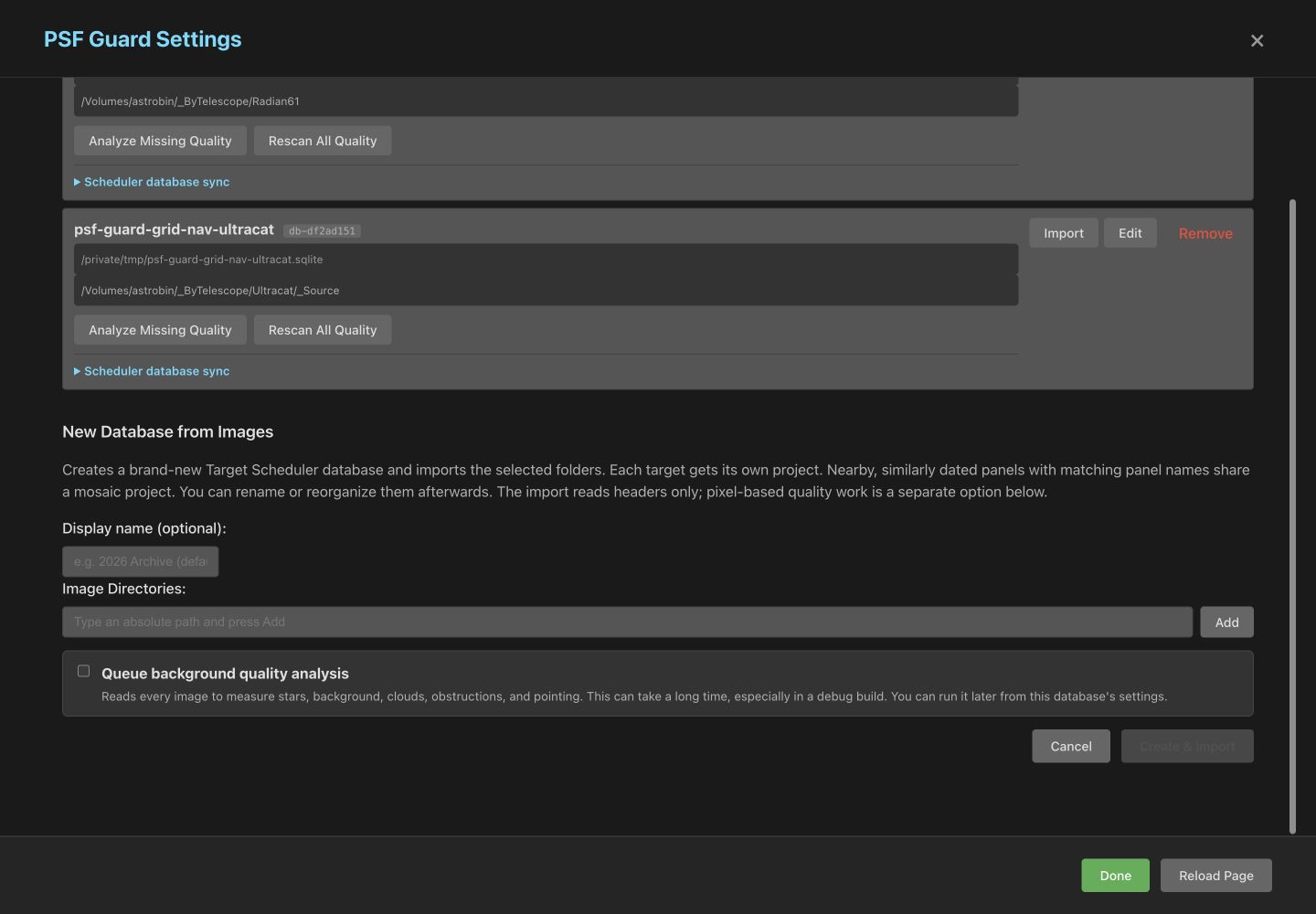
The user interface saves the SQLite database file in the databases/ directory relative to the PSF Guard registry and displays the absolute path on the database card. Duplicate database names receive a numeric suffix automatically. The command-line interface creates the database file at the specified path:
Use create-db to initialize a new database or import to append images to an existing database.
psf-guard create-db ./archive.sqlite /data/lights /data/more-lights \
  --name "Archive"
You can append the --dry-run flag to preview the command-line import without writing any files, or use the --no-register flag to prevent the database from being added to the shared registry.
The application supports standard astronomical image formats.
The folder scanner processes .fits, .fit, .fts, and .xisf files with case-insensitive extension matching. Monolithic XISF files written by PixInsight contain the standard astronomical header keywords, allowing them to be grouped, graded, previewed, screened, and stacked in the same manner as FITS frames. The scanner ignores any sidecar files.
PixInsight commonly stores floating-point pixel data in XISF files normalized between 0.0 and 1.0. When an imported file specifies these bounds, PSF Guard maps the samples onto a 16-bit physical scale during reading. This scaling ensures that background noise and star flux remain comparable with raw camera frames in the same sequence, without modifying the source file.
PSF Guard derives planning metadata from image headers.
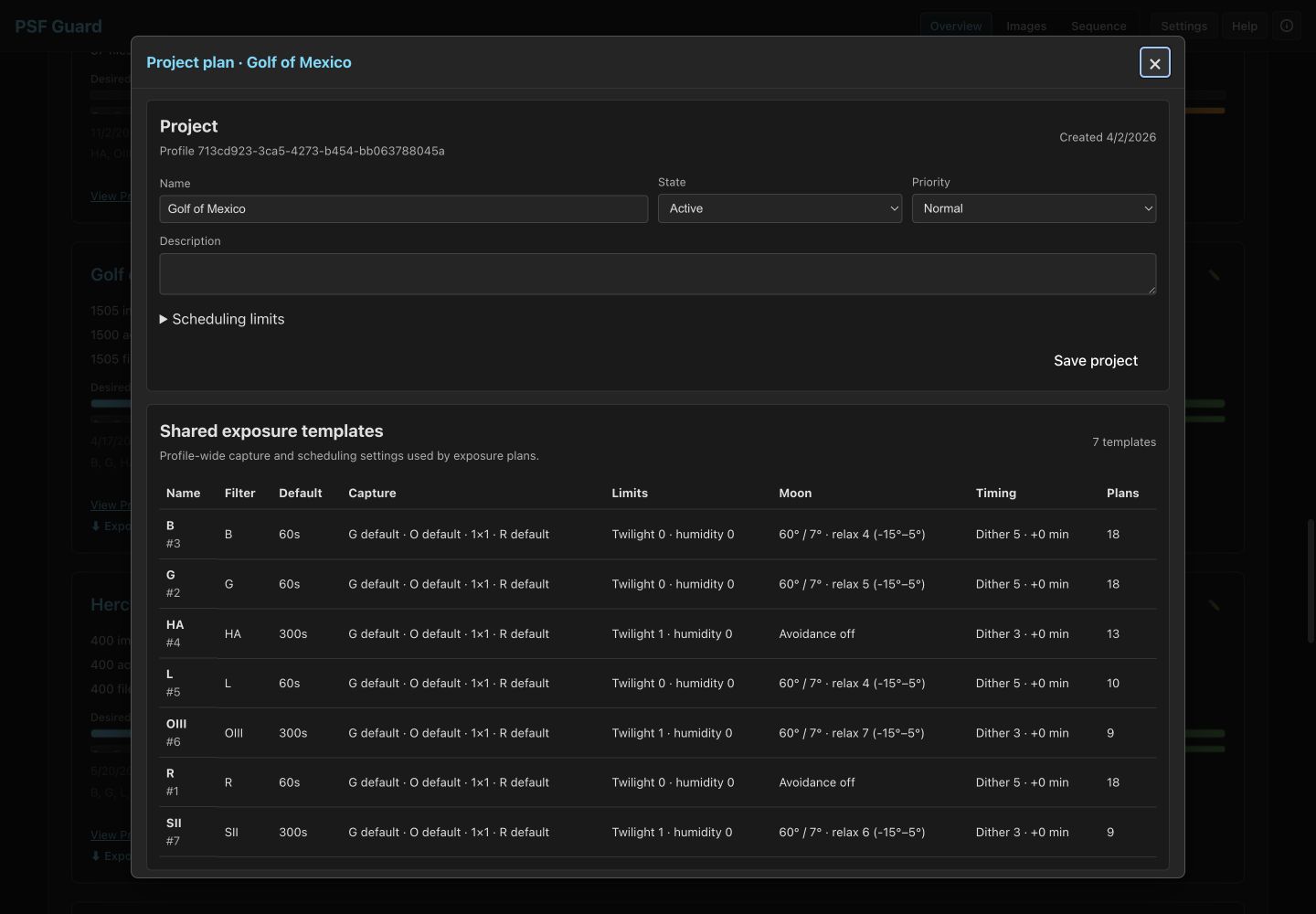
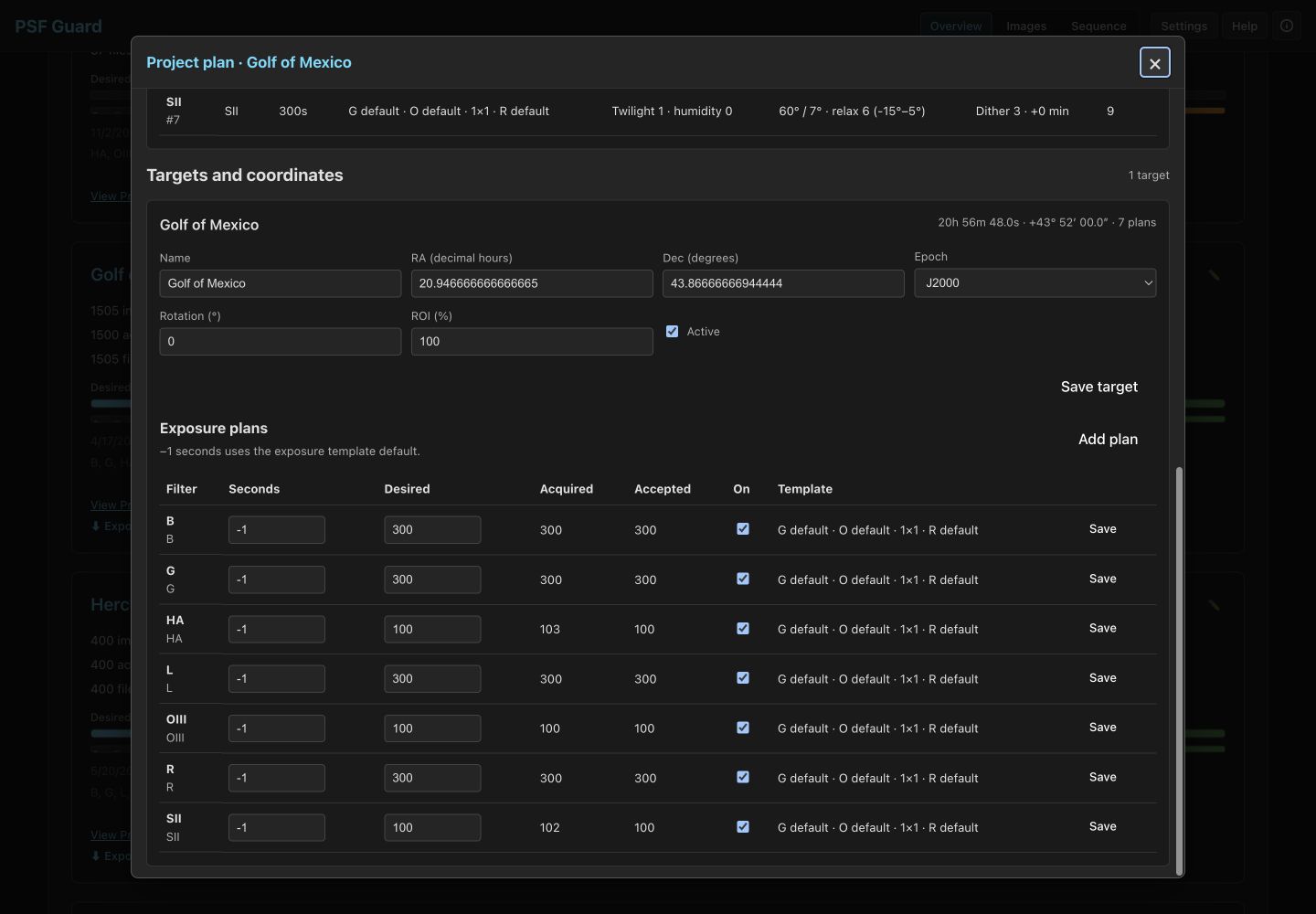
PSF Guard creates a database using a schema that is fully compatible with Target Scheduler. This compatible schema allows you to open existing Target Scheduler databases, though Target Scheduler itself is not required to use the application. Imported light frames are initially marked as pending, and PSF Guard parses their header metadata to populate projects, targets, shared exposure templates, exposure plans, and acquired-image rows:
OBJECTnames define targets. Each target gets one project by default, even across many nights.- Different telescope, camera, focal length, or binning signatures never share a project.
- Panel-style targets share a mosaic project only when the name root, coordinates, and dates agree. The default date window is 14 days and the center limit is five degrees.
- The median header position becomes the target coordinate. Target Scheduler stores RA in decimal hours and Dec in degrees.
- Filter, gain, offset, binning, and numeric readout mode define a shared exposure template. Its most common exposure length becomes the default.
- Each template and exposure length becomes a plan. Frame counts seed the desired and acquired counts.
Bias, dark, dark-flat, and flat calibration frames follow a separate processing path. They are registered as calibration-library records in tables managed by PSF Guard, and they do not generate projects or Target Scheduler acquiredimage records. PSF Guard indexes their file paths and hashes their contents while leaving the source files unaltered.
You can import additional frames into an existing database.
Click Import on a database card to run a dry-run preview. Before applying the changes, you can configure the scan using the following options:
- The Import option lets you select Lights and calibration (the default), Lights only, or Calibration only. The importer counts and ignores any frames that do not match your selection. This allows you to rebuild the calibration library without modifying light frame records.
- The Folders option displays each configured image root directory and two levels of subdirectories. You can select entire root paths or choose specific subfolders to target particular nights or data sets. Selecting subfolders within a configured root does not require additional database administration permissions.
- The Skip processing artifacts option excludes integration masters and intermediate files generated during calibration or registration. This setting is disabled by default, but you should enable it if your directories contain duplicate versions of the same exposure with different names.
The importer skips files with basenames that already exist in the database. It attaches new light frames to existing targets if the object name matches or if the coordinates are within 0.5 degrees, creating new target records only when no matches are found. The system deduplicates calibration frames using their canonical paths and file fingerprints.
The following examples demonstrate how to perform imports using the command-line interface:
# Preview, then import lights and calibration frames
psf-guard import archive ./new-frames --dry-run
psf-guard import archive ./new-frames

# Rebuild only the calibration library
psf-guard import archive ./new-flats --calibration-only

# Leave derived processing files out of the catalog
psf-guard import archive ./processing-tree --skip-processed
The --lights-only and --calibration-only options filter the import to a single frame type and cannot be used together. The --skip-processed option works with either setting. If you want every imported light frame to create a new target record instead of merging with existing targets, append the --no-attach flag.
The settings page queries the active job status from the server when opened. Closing or refreshing the page does not terminate a running import, and the progress interface will resume monitoring. The application runs one import process per database at a time.
You can analyze and backfill image quality attributes.
The database management cards provide two background processing tasks:
- Analyze Missing Quality scans the database to find images without quality metrics, processes those files, and preserves existing cached measurements.
- Rescan All Quality recalculates star counts and overwrites all previously cached quality metrics.
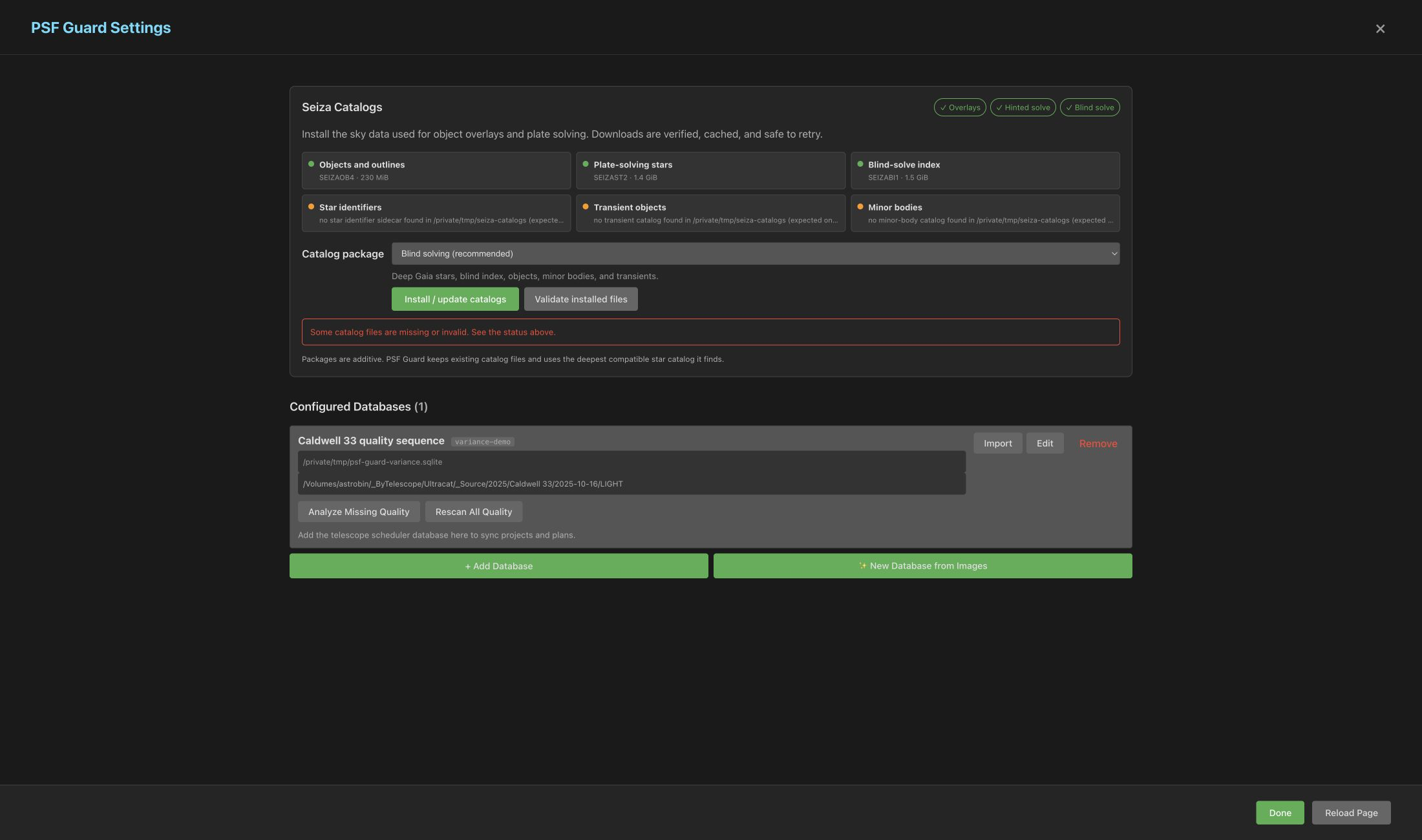
The quality analyzer processes files sequentially by target, reports real-time progress, and yields resources to interactive preview or manual scan operations. The system uses the N.I.N.A. Fast detector to measure star counts and half-flux radius (HFR), ensuring that the measurements remain directly comparable to Target Scheduler values. The star data is also used for flux-based photometry, which detects clouds, spatial obstructions, and verified pointing coordinates. If you restart the server, the active in-memory job will stop, but the persistent cache allows subsequent runs to resume without reprocessing completed files.
The Write star count and HFR into image metadata option determines whether these calculated metrics populate empty fields in your database catalog. This setting is active by default and is applied during standard imports, partial quality analyses, and full rescans. Pre-existing measurements from N.I.N.A. or Target Scheduler are preserved, and PSF Guard never modifies the source FITS or XISF files.
You can review and edit your planning parameters.
Navigate to Overview → Plan & coordinates to view project states, target names, celestial coordinates, camera rotation, regions of interest, shared templates, and filter plans. When database management is enabled, you can edit these values, append new plans, and adjust target and project groups.
You can access the Scheduling limits section to configure the Target Scheduler Flats handling behavior:
| Option | Target Scheduler Behavior |
|---|---|
| Off | The scheduler does not plan flat frames for this project. |
| Every 1–7 sessions | The scheduler requests flat frames after the specified number of imaging sessions. |
| Target completion | The scheduler requests flat frames when the target is fully imaged. |
| Immediate | The scheduler requests flat frames during the next available opportunity. |
These settings manage Target Scheduler planning states. They do not affect PSF Guard's calibration library matching or the calibration mode applied to stack previews.
You can synchronize databases between your grading machine and telescope computer.
You should preview every change before applying synchronization updates.
Configure both databases in Settings, and use the Data Transfer tab to manage sync tasks. Each task requires running a dry preview before you can click Apply:
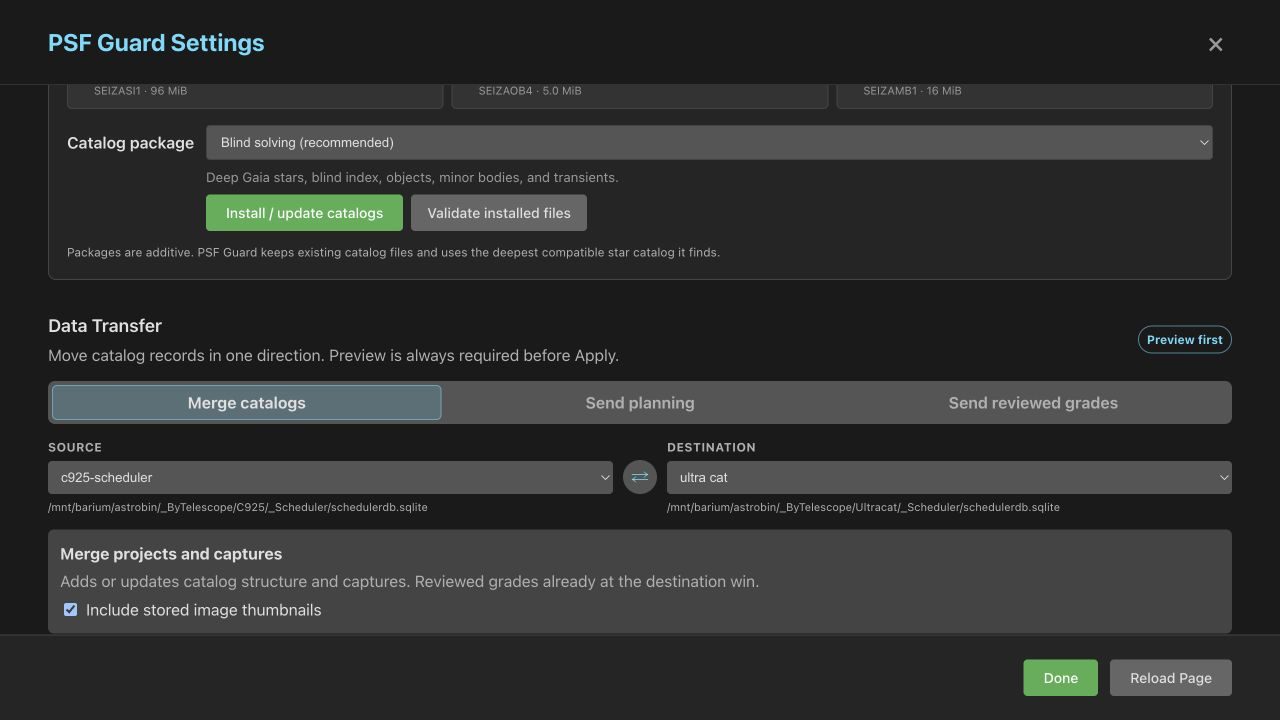
- Merge catalogs copies new or modified projects, targets, templates, plans, capture records, and grading states from the telescope database into your local catalog. Local manual grades take precedence over telescope values.
- Send planning exports projects, targets, templates, plans, and scheduling rules from your local database back to the telescope, without modifying acquisition records or existing grading states on the telescope.
- Send reviewed grades syncs manual Accepted and Rejected states for matching image GUIDs to the telescope database. It ignores pending local grades.
The following command-line examples demonstrate the corresponding synchronization tasks:
psf-guard sync pull --from telescope.sqlite --to archive.sqlite --dry-run
psf-guard sync planning --from archive.sqlite --to telescope.sqlite --dry-run
psf-guard sync grades --from archive.sqlite --to telescope.sqlite --dry-run